
Get Started
| Step | Action |
|---|---|
| 1. Download | Open the .dmg file |
| 2. Install | Drag YEN to Applications |
| 3. First launch | Right-click YEN.app, click Open |
| 4. Updates | Automatic via Sparkle (checks on launch) |
Terminal History
Terminals have evolved dramatically over five decades. Each generation added capabilities — but also complexity, overhead, and distance from what makes a terminal great.
1978 — VT100
ANSI escape codes. Hardware standardization. The foundation every terminal still builds on.
1984 — xterm
Software terminal for X11. Proved the hardware could be virtualized without losing capability.
2008 — iTerm2
Tabs, profiles, split panes. macOS power users finally had options — but feature creep had begun.
2017 — Hyper
Electron. Web tech. Plugins. Beautiful themes — wrapped in 100MB+ of Chrome. Style over substance.
2021 — Warp, Fig, and others
AI assistance. Cloud sync. Account required. Your commands, sent to servers. The terminal became a product to monetize.
2026 — YEN
Back to fundamentals. GPU rendering. Native speech-to-text. No cloud lock-in. No account required for local desktop use. No AI watching what you type. Just a fast terminal that respects your privacy.
YEN doesn't reject progress — it rejects unnecessary complexity. Everything we add must make you faster without making you dependent on cloud services or AI subscriptions.
Terminal IDE
Most IDEs are text editors that bolted on a terminal panel. YEN takes the opposite approach — start with the fastest terminal on macOS, then add IDE capabilities around terminal-first workflows. No Electron. No web views. No second app to switch to.
The approach
Core actions stay in terminal context. Features that need richer UI (such as Settings, Scratchpad, and overlays) use native macOS panels anchored to active terminal workflow instead of browser-style views.
| Capability | Shortcut |
|---|---|
| GPU terminal — Metal rendering, 60 FPS | Always on |
| Speech-to-text — on-device, 50+ languages | Option + Space |
| Settings — 72 curated themes, fonts, cursor, opacity, padding, notifications, split layouts, permissions | Cmd + , |
| File browser — browsing, syntax-aware previews, bundled static theme / flavor defaults | Cmd + Shift + O |
| Global Chat — built-in chat rooms (Lounge, Feedback, Show & Tell, Support) | Type chat in YEN (or yen chat in any shell) |
| Local weather — Open-Meteo, coordinate-first with ASCII icons, 6-hour hourly forecast, and grouped output | Type weather in YEN (or yen weather in any shell) |
| Screenshot — save window to file and clipboard | Cmd + Shift + S |
| Tab sidebar — transient left tab rail with opt-in persistent docking | Cmd + Shift + B |
| Scratchpad — right-side quick notes panel with seeded helper copy, click-away close, Cmd + C/Cmd + V, and highlight-to-auto-copy | Cmd + Shift + J |
| Quick Terminal — global hotkey dropdown | Ctrl + ` |
| Split layout presets — 10 one-click configurations | Cmd + Option + 1-0 |
| Bundled tools — fd, rg, fzf, zoxide, bat, jq, and more | Zero setup — no homebrew needed |
| Window state restoration — splits, tabs, positions | Automatic |
| IDE workflow control plane — detect / env, search, LSP / AST, share, devcontainer / vscode, explain, verify / gate, workflow / agents, PR review + evidence | yen ide ... |
| Shell integration — bash, zsh, fish, elvish, nushell | Automatic |
New features ship weekly (sometimes daily)!
| Traditional IDE | Terminal-First IDE (YEN) |
|---|---|
| Editor with a terminal panel | Terminal with editing capabilities |
| Electron or web view | Native GPU rendering |
| Hundreds of MB at install | Lightweight from day one |
| Features you never asked for | Each feature is opt-in |
| Cloud accounts, telemetry | No required desktop account. No desktop telemetry. Website uses anonymous aggregate analytics. |
IDE Workflows
YEN ships an IDE workflow command surface in terminal context. These commands are local-first helpers for trust, search, local LSP lifecycle and diagnostics, verification, adapter orchestration, and PR review, designed to avoid context-switching to separate IDE panels.
What ships today
- Project-scoped search and the desktop
Cmd + Shift + Ppalette search layer on macOS - Schema-validated workflows, first-party adapter controls, PR review workspace, and merge-conflict workspace
- Explicit per-project LSP trust, local runtime lifecycle, and hover / definition / references / rename requests
- Grouped diagnostics snapshots with freshness status and bounded managed installs
- Encrypted terminal sharing with expiry / revoke and AST-labeled fallback queries
- Local-workspace devcontainer control and deterministic VS Code inventory / import
| Command | What you get |
|---|---|
yen ide detect / env | Project context, trusted environment loading, and machine-readable env exports |
yen ide history / replay / profile | Per-project command history, replay, and timing logs |
yen ide search | Project-scoped search across files, content, history, and action catalog with source-labeled ranking; the same provider contract powers non-empty desktop palette queries on macOS |
yen ide lsp start / status / diagnostics | Local LSP status and diagnostics, explicit per-project trust, resolver guidance, grouped diagnostics snapshots with fresh / stale visibility, and live request surfaces for hover / definition / references / rename |
yen ide ast / devcontainer / vscode | AST fallback, local-workspace devcontainer control, and deterministic VS Code inventory / import with dry-run diff reporting |
yen ide share status / host --read-only | Integration-first terminal sharing with encrypted tokens, passphrase auth, read-only vs interactive mode, expiry, and explicit revoke over locally installed upterm / tmate, with local token validation before join |
yen ide explain (??) | Failed-command explanation with project-aware hints |
yen ide verify / gate | Verification bundles + risk-aware approval checkpoints |
yen ide workflow run --dry-run | Ordered workflow plans, trust gating, and step-level logs |
yen agents list / open --dry-run | First-party adapter board status plus fail-open launch planning for Claude/Codex workflows |
yen ide pr-review | Focused PR diffs, loop / loop-script navigation, inline comments, evidence and review templates; macOS also gets a desktop workspace launched from the command palette with local inline-comment / evidence staging plus explicit posting and decision actions |
yen ide timeline / pr-notify | Local audit timeline plus GitHub review-request notifications |
Quick start:
$ yen ide detect
yen ide env list
yen ide lsp status
yen ide lsp status --format json
yen ide lsp diagnostics
yen ide lsp hover src/app.ts:12:3
yen ide lsp install status --all
yen ide share status
yen ide share host --read-only --ttl-minutes 30
yen ide share revoke
yen ide ast status
yen ide devcontainer status
yen ide vscode inventory
yen ide vscode import --dry-run
yen ide search verify
yen ide explain --last
yen ide verify --quick --no-security
yen ide workflow run quick-check --dry-run
yen agents list
yen ide gate --dry-run -- git reset --hard
yen ide pr-review 123 --loop --loop-script "e,q"
yen ide pr-review 123 --inline src/app.ts:42 --inline-body "Needs guard" --post
yen ide timeline --limit 20
On macOS, the same search contract appears in the desktop command palette. Press Cmd + Shift + P, keep the query empty for action launching, or type to search built-in actions first. When the action catalog misses, repo-backed terminals fall back to project files, content, diagnostics, and recent history, with generated / vendor trees excluded from indexing.
Empty-query action launching also exposes Review Pull Request and Resolve Merge Conflicts alongside quick IDE actions for LSP Status, LSP Diagnostics, LSP Install Matrix, Share Status, Share Host (Read-Only), Share Revoke, Devcontainer Status, VS Code Inventory, VS Code Import (Dry Run), and AST Status.
For trusted local repos, the review actions open the desktop PR review workspace and the desktop merge-conflict workspace. The merge-conflict flow is scoped to marker-based text conflicts and confirms + revalidates the file before staging. Terminal-first LSP requests, encrypted terminal sharing, bounded managed installs, devcontainer orchestration, and VS Code import all stay local-first, opt-in, and project-scoped.
Speech-to-Text
On-device speech-to-text — no AI services, no cloud. Hold Option + Space in any app.
Hold Option + Space in any app — YEN, Safari, VS Code, Notes, anything — speak, and release. Your words appear at the cursor. Audio never leaves your Mac. Read more on the blog.
Works on macOS 13+. On macOS 26+, YEN uses Apple's SpeechAnalyzer with DictationTranscriber, sessions are unlimited, and missing language packs install automatically (foreground-gated; background attempts use non-modal recovery). In-app paste restores the previous clipboard shortly after paste; cross-app synthetic paste keeps dictated text on the clipboard if delivery cannot be proven. Live Transcript Preview is available in the floating overlay, while Translate-on-Dictate remains EXPERIMENTAL and off by default. If translation assets are missing, YEN can ask macOS to prepare them only while YEN is frontmost in Settings. The translation source stays bound to the recognizer locale used for that capture session, and stop-time translation runs only for pairs that are already installed.
Recording indicator
A recording dot blinks in the menu bar while listening. Release to paste.
| Feature | YEN |
|---|---|
| Privacy | 100% on-device (macOS Speech Recognition) |
| Binary size | Zero bloat — no AI models |
| Languages | 50+ (whatever macOS supports) |
| Compatibility | Any macOS app — Safari, VS Code, Notes, Slack, plus shell, vim, nano, ssh |
| Cost | Free forever |
| Offline | Yes (macOS 13+, after language assets are installed) |
| Duration | macOS 26+: unlimited; older macOS: 60s (auto-pastes) |
Pro tip: On older macOS, release and press again for longer content. Enable Launch at Login in Settings> Sounds > Speech Setup for dictation without a terminal window open.
Settings
Press Cmd + , to toggle Settings. The panel uses a left sidebar with five sections — General, Sounds, Workspace, Themes, Keyboard — plus global search and in-panel Import/Export/Reset actions. Most changes apply in real-time across every open tab.
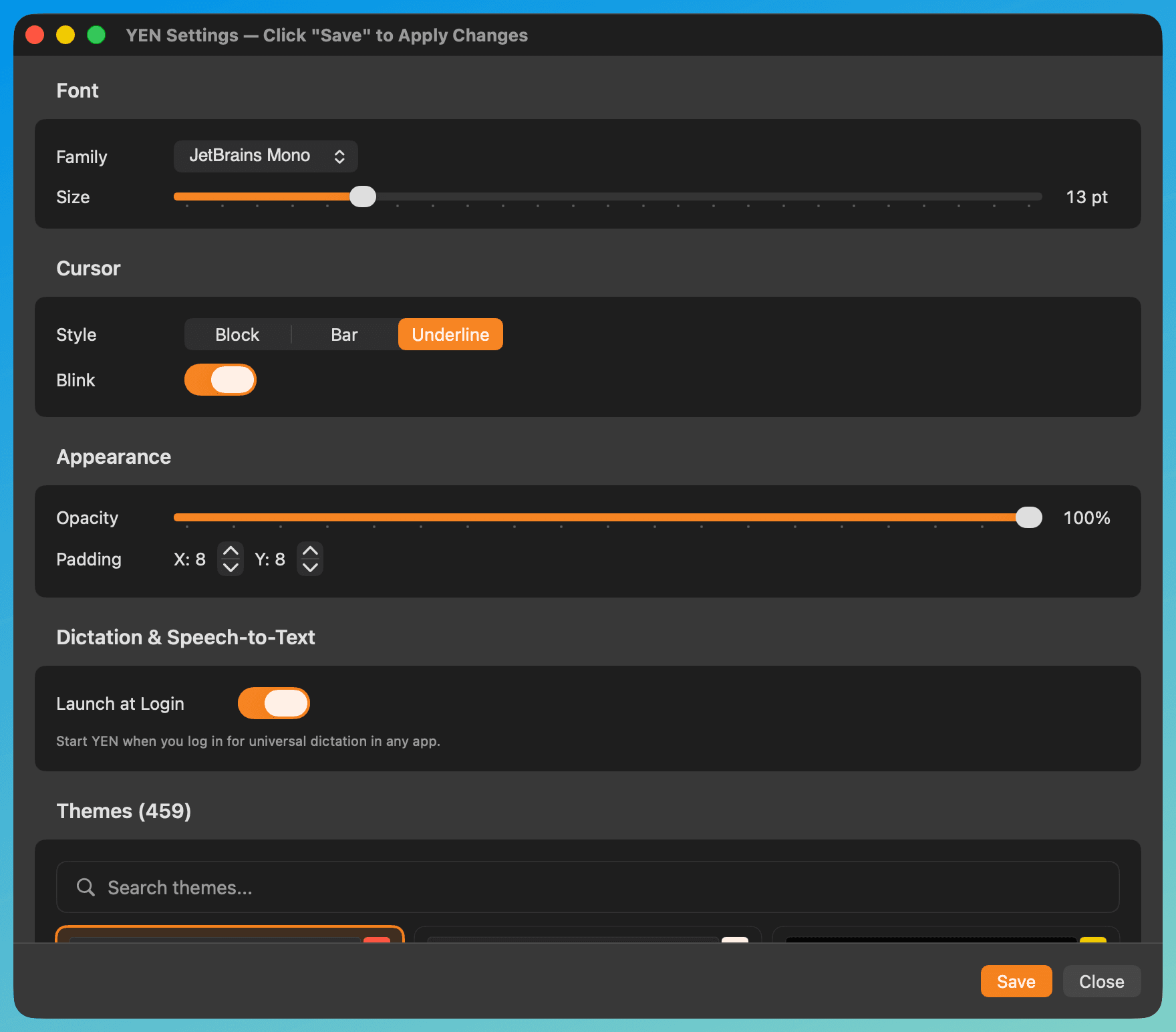
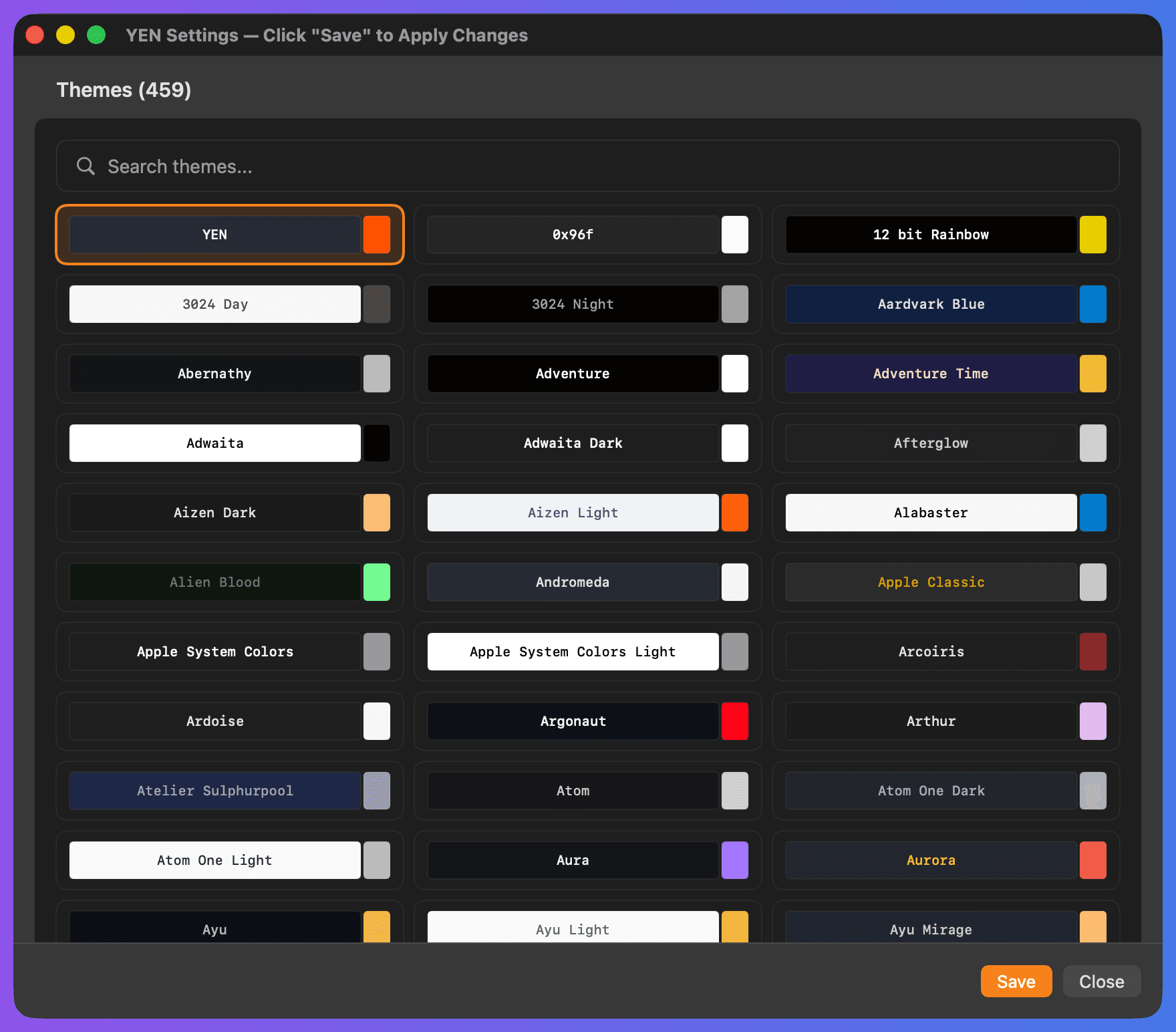
72 curated bundled themes with live previews and instant apply. Comfort settings (font, cursor, opacity, padding) stay independent so you can switch themes without losing your preferred ergonomics. Window Border controls live in General > Appearance. Workspace includes instant toggles for Tab Sidebar (Cmd + Shift + B) and Scratchpad (Cmd + Shift + J).
The Sounds section includes Speech Setup with live permission status for Accessibility, Microphone, Speech Recognition, and local speech readiness. It also includes per-stream notification controls for General, Build, Chat, Mail, and Calendar events, with independent sound, volume, and delivery mode settings (Off, Banner Only, Sound Only, Banner + Sound). Translate-on-Dictate remains experimental in this section; compatible targets follow the current recognizer locale policy, and translation asset prompts stay anchored to the visible Settings flow instead of background dictation.
The Keyboard section includes reserved-shortcut disclosure, conflict detection, and inline shortcut recording with clear constraints: fixed shortcuts and duplicate-action rows stay read-only, shortcuts must include Cmd/Ctrl/Option, recording follows your active keyboard layout, Esc cancels recording, and capture times out after 10 seconds. Importing a saved settings file validates values before applying changes.
Settings export/import carries both config.yen and the Settings-managed preferences intentionally kept outside config: Workspace toggles, the Legacy Catalog theme-browser toggle, Window Border controls, dictation translation/live-preview state, and notification routing/sound selections. Machine-local state such as permission grants, Launch at Login, installed user themes, and downloaded or imported sound assets stays on the current Mac.
Notification power users also get terminal command-finish controls, focused-window behavior, and one-click sound-pack management:Download All Sound Packs relabels to Update Sound Packs once the official library is installed, and Remove Downloaded Packs reclaims local storage without touching imported custom sounds. Use Cmd + Shift + P then type settings themes to jump directly to any section.
Advanced configuration:
~/Library/Application\ Support/com.yenchat.yen/config.yen
Split Pane Labels
Each split pane can have a custom label displayed as a themed pill at the bottom-left corner. Open the command palette (Cmd + Shift + P) and search Rename Split Label to set or clear a label. Labels persist across window restores, tab switches, and session restarts.
Independent from terminal titles
Split labels are separate from tab / window titles. When no custom label is set, the pill shows the surface title, working directory leaf, or "Terminal" as a fallback. Labels adapt their foreground color to the terminal background for readable contrast in any theme.
| Behavior | Detail |
|---|---|
| Set / clear | Command palette → Rename Split Label. Leave blank to revert to automatic. |
| Persistence | Labels survive window restore, force-quit recovery, and Quick Terminal sessions. |
| Visibility | Hidden when a pane is too small (below 140 x 80 points), during drag / drop, or when hovering a URL. |
| Theming | Pill background and foreground adapt to the terminal background color for readable contrast in any theme. |
File Browser
Press Cmd + Shift + O to open the file browser. It launches inside the terminal — not in a floating window, not in a sidebar. Launch is scoped to the active terminal surface and does nothing when another window owns focus. Browse directories, preview files, and manage your project without leaving the terminal surface.
Terminal-native with cd-on-quit
Renders inside the terminal with async I/O — large directories load instantly. Press q to exit and your shell follows to the last directory you visited. Press Enter on code files for a colorized read-only view, or O for open-with.
| Feature | Details |
|---|---|
| Syntax-highlighted previews | Code, images, archives, videos, PDFs |
| Quick Look | Space for native macOS preview |
| Search and fuzzy find | / to search, z to jump to frequent dirs |
| File operations | Copy, move, delete, undo, bulk rename, archive extract |
| Vim + mouse navigation | h / j / k / l, visual selection, click, scroll |
| Git status indicators | Modified, staged, untracked icons inline |
| cd-on-quit | q to exit; shell follows to last directory |
| Open in editor / Finder | e for $EDITOR, g r for Finder |
| Full shortcut reference | Press ? inside the file browser |
Commands & Shortcuts
Keyboard shortcuts:
| Action | Key |
|---|---|
| Command palette | Cmd + Shift + P |
| Settings | Cmd + , |
| File browser | Cmd + Shift + O |
| Speech-to-text | Option + Space |
| Split layout presets | Cmd + Option + 1-0 |
| Split horizontal / vertical | Cmd + D / Cmd + Shift + D |
| New tab / window | Cmd + T / Cmd + N |
| Close tab / pane | Cmd + W |
| Quick Terminal | Ctrl + ` |
| Screenshot | Cmd + Shift + S |
| Tab sidebar | Cmd + Shift + B |
| Scratchpad | Cmd + Shift + J |
| Copy screen file path | Cmd + Ctrl + Shift + U |
| Paste screen file path | Cmd + Shift + U |
| Open screen file | Cmd + Option + Shift + U |
| Copy-on-select | Select text; hold Shift in TUI apps |
| Font size +/- | Cmd + + / Cmd + - |
| Toggle fullscreen | Cmd + Enter |
| Rename split label | Command palette → Rename Split Label |
CLI commands:
Commands run immediately inside YEN. In external shells, run yen init zsh or yen init bash once, then restart the shell so wrappers like y, chat, mail, and weather, btop, and fastfetch route to YEN.
| Command | Description |
|---|---|
chat | Global chat rooms (Lounge, Feedback, Show & Tell, Support) |
mail (email) | Gmail client (compose, reply, forward, labels, search) |
calendar | Google Calendar (agenda / month / day / week, recurring events, RSVP) |
weather | Local weather ( --city, --metric/--imperial) |
btop (monitor, resources) | System monitor TUI (bundled btop) |
fastfetch (fetch) | System info snapshot (bundled fastfetch) |
bios | System info snapshot with YEN BIOS branding |
browse (files, fm) | File browser |
y | File browser with cd-on-quit |
yengit (lazygit, gitlazy, gityen) | Git TUI (bundled lazygit) |
yen help | Full command reference and aliases |
yen ide --help | Terminal IDE workflow commands (detect / env, LSP / AST, share, devcontainer / vscode, history / search, explain, verify / gate, workflow automation, pr-review with loop-script + inline comments, timeline) |
yen agents --help | Adapter board commands for first-party Claude / Codex workflows and workspace templates |
yen +list-themes | List all 72 curated bundled themes |
yen +edit-config | Open config in $EDITOR |
yen init zsh | Shell integration for external zsh |
yen init bash | Shell integration for external bash |
yen update | Check for a newer release |
yen --version | Show version |
App keys (Chat / Gmail / Google Calendar defaults):
| Action | Key |
|---|---|
| Chat | |
| Switch rooms | Tab / Shift + Tab / ← / → |
| Scroll timeline | ↑ / ↓ / Page Up / Page Down |
| Jump to top / latest | Home / End |
| Send / new line | Enter / Option + Enter |
| Quit / change handle | /q / /h |
| Paste image | Ctrl + V or drag file |
| Open / archive / trash | Enter / e / # |
| Reply all / undo | a / z |
| Next / previous email (reader) | j / k |
| Calendar | |
| Create / open event | c / Enter |
| Navigate / today | j / k / t |
| Switch views | a / m / d / w |
Need the complete command + alias reference? Run yen help. For full file browser shortcuts, press ? inside the file browser.
Custom keybindings:
Open Settings > Keyboard to view all shortcuts, detect conflicts with popular apps, and re-record editable shortcuts inline. Fixed app shortcuts remain locked, duplicate-action rows stay read-only, and layout presets only target a foreground terminal window. For advanced config, edit the config file directly.
Troubleshooting
- App won't open: Right-click YEN.app → Open, or allow in System Settings → Privacy & Security.
- Commands not found: YEN commands only work inside YEN terminal, not Terminal.app.
- Speech-to-text not working: Grant Accessibility, Microphone, and Speech Recognition permissions in System Settings → Privacy & Security. Dictation listens to exact
Option + Spaceonly (no Cmd/Ctrl/Shift). Check the menu bar dropdown for blocked-state recovery actions. - Permissions granted but still blocked: In Settings > Sounds > Speech Setup, check
Local Speechstatus and useRe-check. - Option + Space conflicts: Check for conflicts with input source, Spotlight, Alfred, or Raycast shortcuts. Use Settings > Keyboard for fixed-shortcut conflict guidance.
- Layout shortcut not firing: Use exact
Cmd + Option + 1-0with no extra modifiers, and keep a terminal window focused. YEN blocks layout presets while Settings or another utility window is key instead of retargeting a background terminal. - Cursor style / blink not previewing: Changes are applied, but preview appears after you refocus a terminal window (unfocused terminals show a hollow block cursor).
- Opacity slider looks unchanged: Background opacity applies after app restart. Use Window Border for an immediate focus cue.
- Dictation menu shows blocked: Check the menu bar dropdown for recovery actions. In Settings > Sounds > Speech Setup, use
Re-checkto verify local speech service status. - Layout shortcuts not working in Settings:
Cmd + Option + 1-0is intentionally ignored while Settings is focused. Click a terminal window first, because layout presets only target a foreground terminal window. - File browser not opening: Verify the terminal window is focused, not the Settings panel or another window.
- "command not found: y": Shell integration isn't active in this shell. In external shells, run
yen init zsh(or bash) and restart that shell. In YEN, this usually means integration was disabled; usebrowseinstead. mail/chat/weather/btop/fastfetchruns a system command: Your shell integration is missing / outdated. Re-runyen init zsh(or bash) in external shells, then restart the shell.
Reset config to defaults:
$ rm ~/Library/Application\ Support/com.yenchat.yen/config.yen